Backup to your own Drive
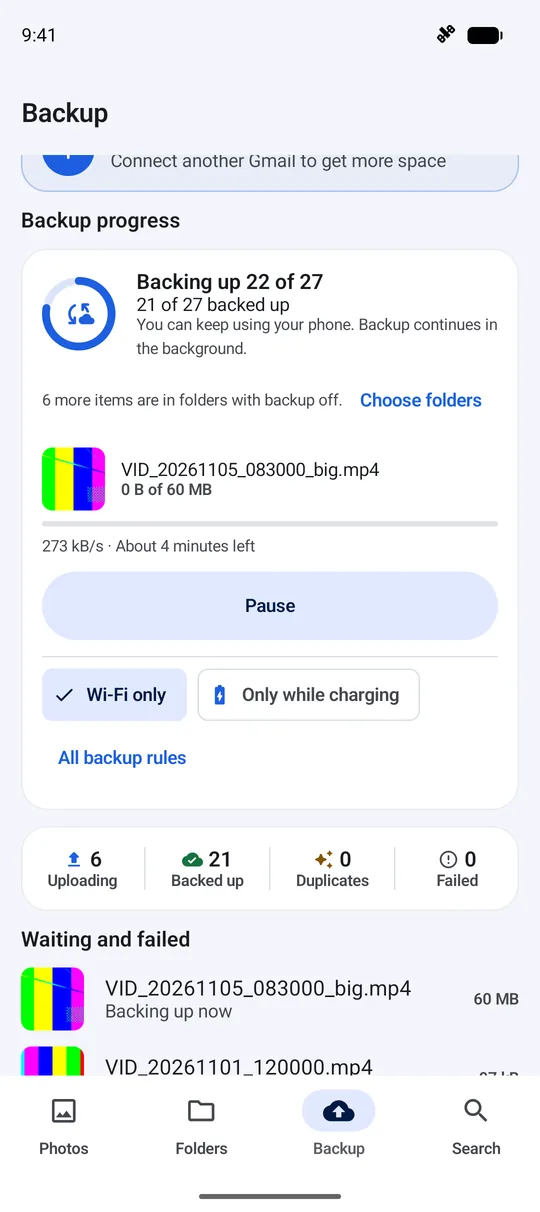
Photos and videos upload in the background, on Wi-Fi only or while charging if you choose. A file counts as backed up only after its size and checksum are verified.
Android gallery · backup to your own Drive
Gallery is a photo and video gallery for Android. It sends your files straight from your phone to your Google Drive, and can spread them across more than one Gmail account. We never receive your photos.
Originals go into a Gallery Backup folder in your own Google Drive. The app can only see files it uploaded itself.
Upload, duplicate checks, text search and clean-up all run on your phone. Our server never gets a photo, a file name or a folder path.
With no network, or with no account at all, you can still browse, search and organise. Backups wait until you are back online.
Features
Photos and videos upload in the background, on Wi-Fi only or while charging if you choose. A file counts as backed up only after its size and checksum are verified.
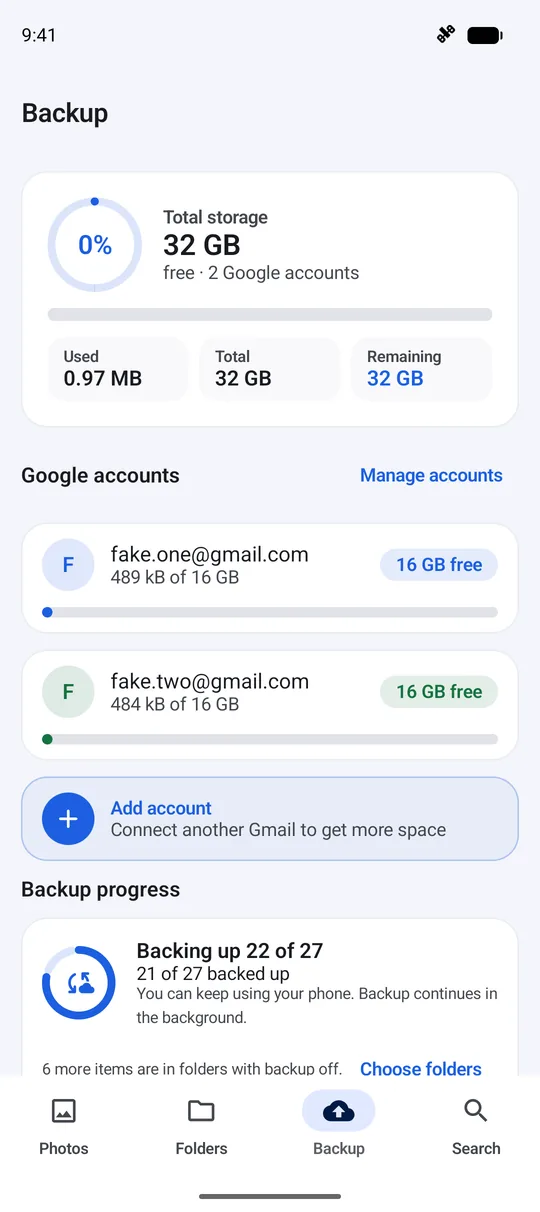
Connect several Google accounts and see their space as one total. Each file goes to the account with the most free space.
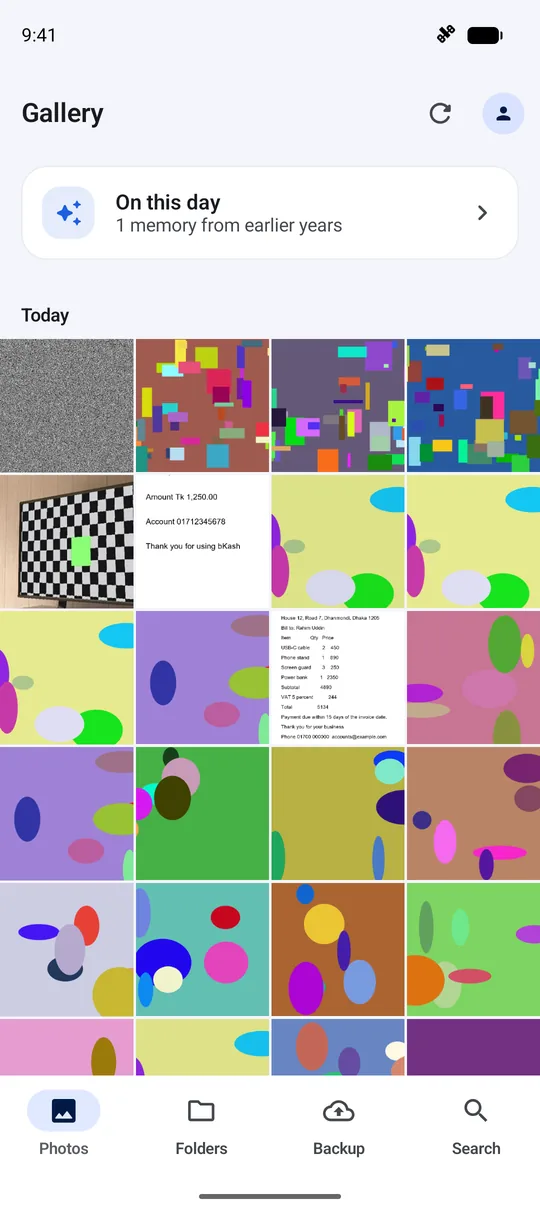
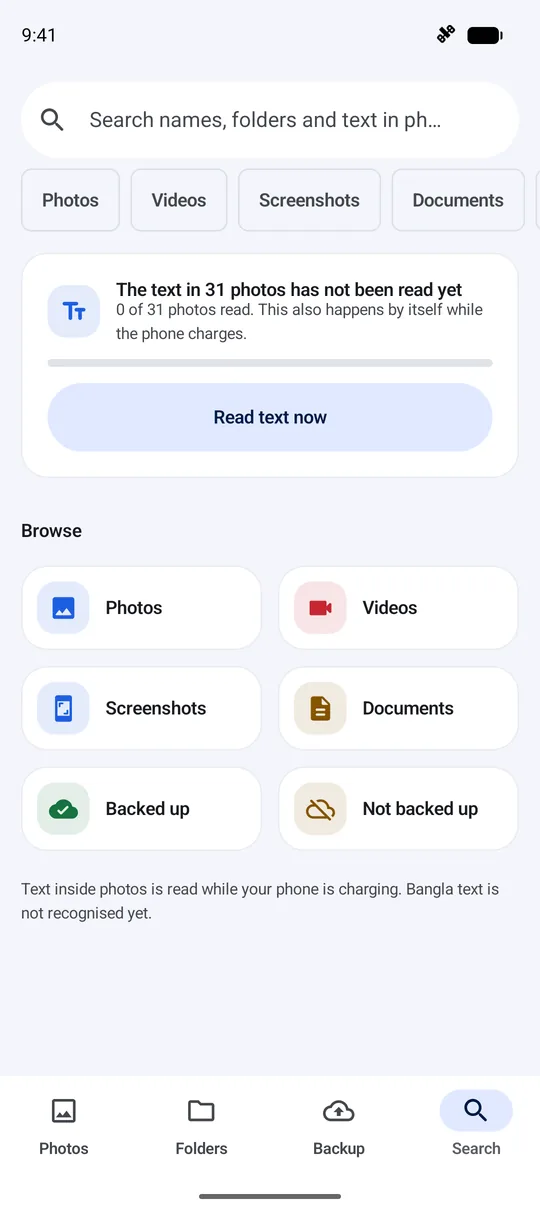
Find photos by name, folder, date or type, and by the words inside them, such as a receipt or a note. Text is read on the phone; Bangla script is not recognised yet.
Finds exact duplicates, look-alike shots, large videos and old screenshots. Nothing is removed until you have looked at it and confirmed.
Choose which folders are backed up. Keep albums and favorites, bring items back from the trash, and put private items in a locked vault.
Playback speed, fit and fill modes, a small floating window, and sound that keeps playing after you leave the app, if you want it to.
Remove the phone copies of items that are safely in Drive, and download them again from Drive when you need them.
Point the camera at a page; edges are found and straightened, and the result is saved as an image and a PDF. Available on phones that support it.
Tour
Screenshots from the app itself, taken with sample pictures and sample accounts.
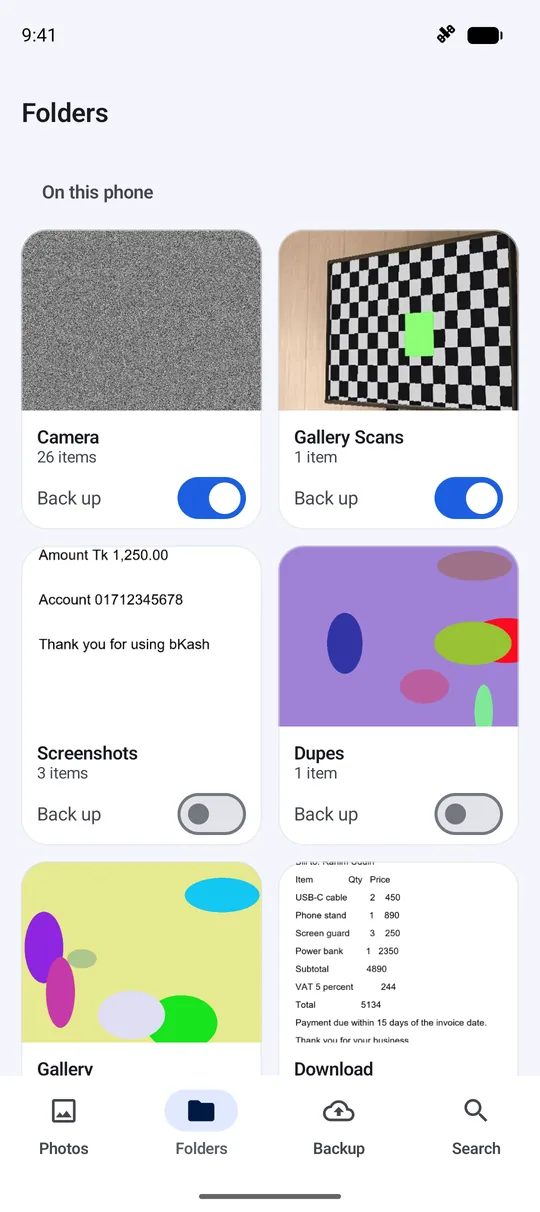
Get started
So the app can show the photos and videos on your phone. You can also give access to selected items only.
Sign in and connect the Google account whose Drive should hold your backup. You can skip this and add it later.
Nothing is uploaded until you switch it on yourself. Pause it whenever you like.
Privacy
The app talks to our server only for sign-in, your plan and limits, and a daily count of how much is backed up. Your Google sign-in stays inside Android on your phone.
Read the privacy policyPricing
Free
The app costs nothing to install and use. There is no paid plan today.
Your backup uses the storage of your own Google accounts. If a Drive fills up, the space is Google's to sell, not ours: you can free space, add another account, or buy storage from Google.
FAQ
Into your own Google Drive, in a folder called Gallery Backup, sorted into Photos, Videos, Screenshots and Documents by year and month. The phone uploads them directly to Google.
No. Photos, file names and folder paths never reach our server. The admin panel shows only accounts, plans and totals.
Only the files it uploaded itself and its own hidden settings folder. It cannot read the rest of your Drive.
Not to use the gallery. Browsing, search, albums, trash and the vault work without signing in. You need an account and a connected Gmail only for backup.
Yes. The gallery keeps working and backups wait. After seven days without reaching the server, backup pauses until the app can connect again.
No. Gallery is an Android app, for Android 8 and later.
In the app: Settings, then Delete account. That removes your account and its records from our server. The files in your own Google Drive stay where they are.
Free on Google Play, for Android 8 and later.